* If you find these Videos helpful, please click here and Subscribe to our YouTube Channel
Use these Links to skip to a specific Chapter, or Watch the entire Video Below:
Start Internet Explorer & Install Plug in
Download Video (* You must Run Internet Explorer as an administrator)
Playback Video Using VS Player
You can Download the VS Player Here
1. Start Internet Explorer
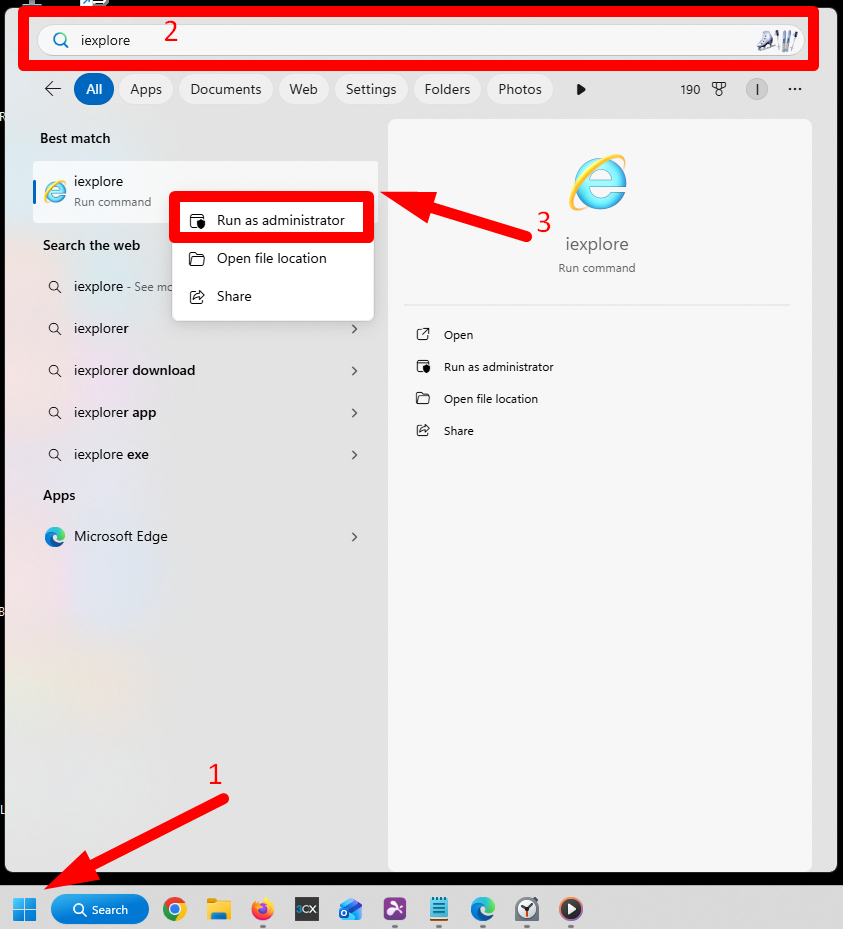
a. On your computer, hit the windows button icon at the bottom and type “iexplore”.
b. Right Click and select “Run as administrator”. This will run a command that opens the Internet Explorer browser.
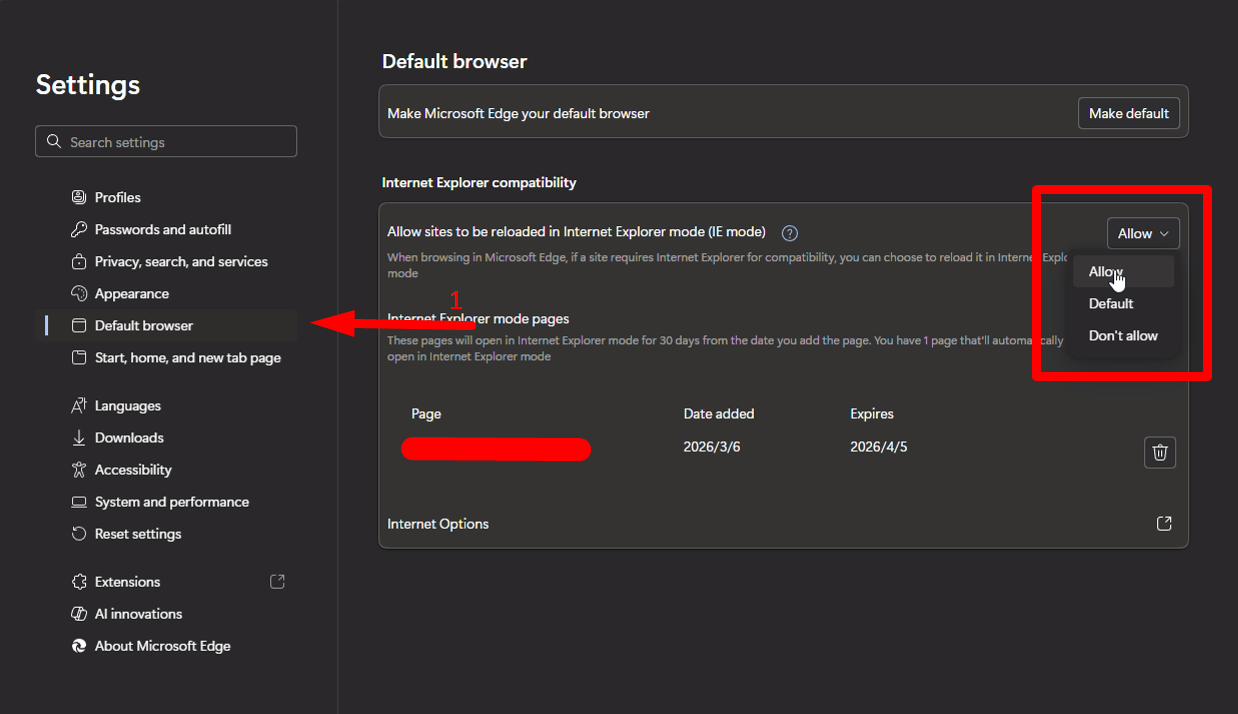
c. Since Microsoft has discontinued IE and if your computer is newer/updated, it will likely open Microsoft Edge instead. Navigate to the Settings icon at the top right of Microsoft Edge and open settings.
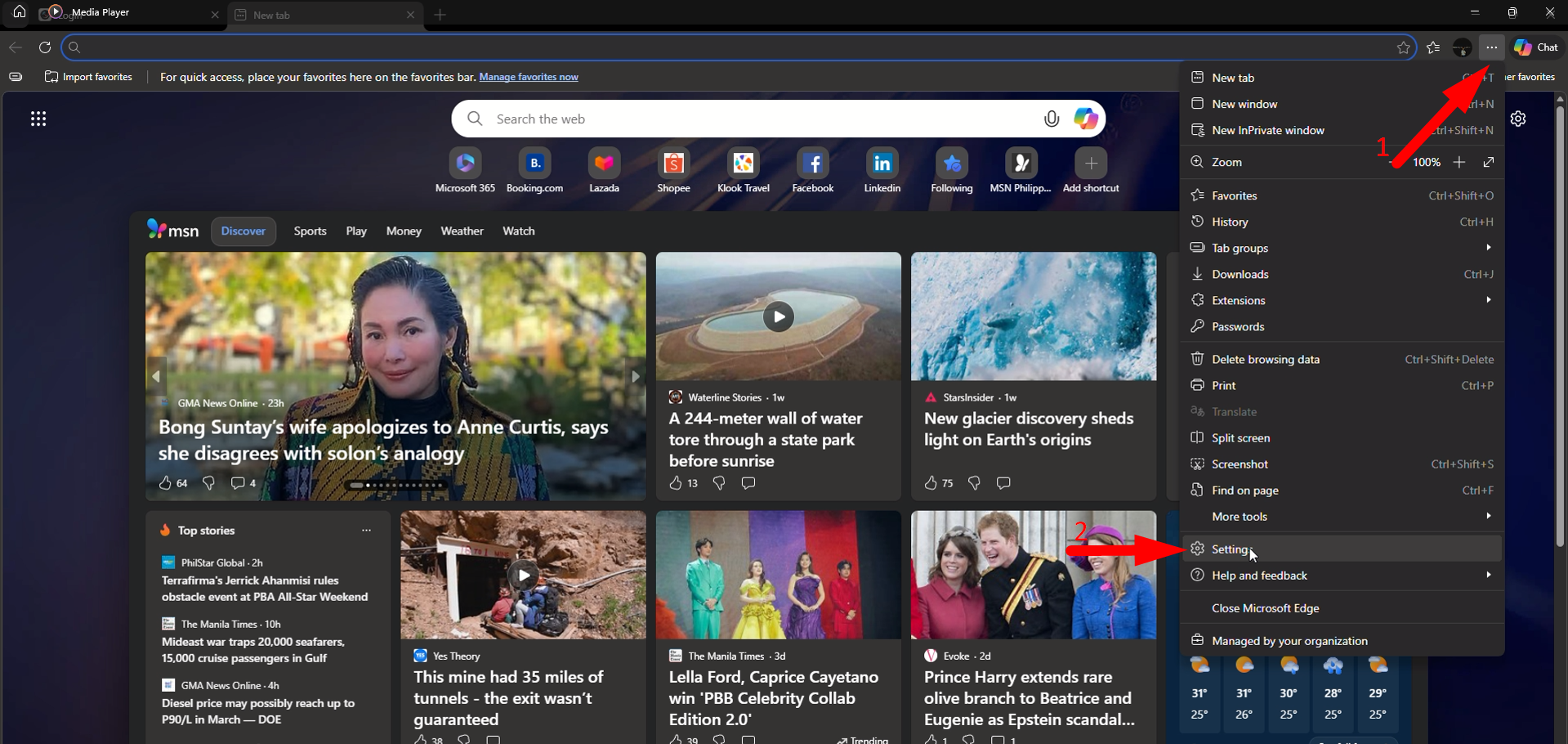
d. Click the “Default Browser” tab, navigate to the “Allow sites to be reloaded in Internet Explorer (IE Mode)” dropdown, and select “Allow”.
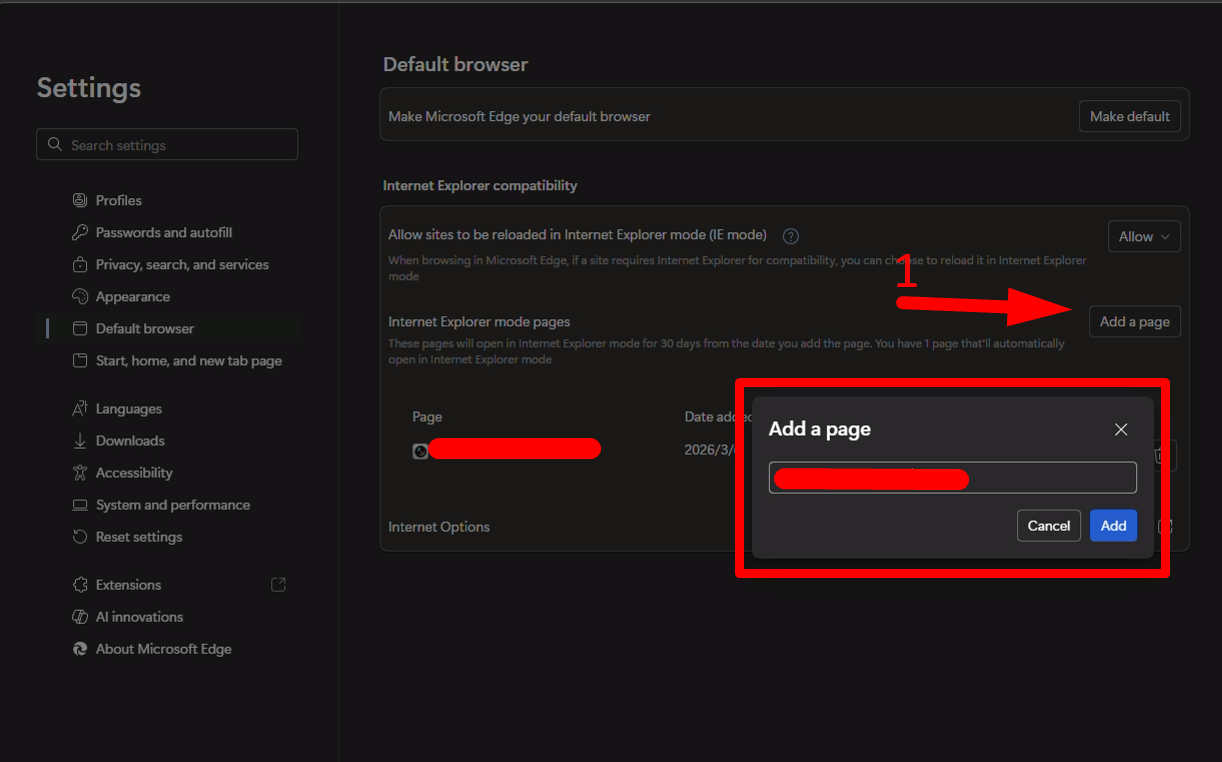
e. Hit “Add a page” and add your DVR’s address. You might need to obtain this address from your Administrator. Contact support@structuredprogress.com for assistance.
2. Access DVR
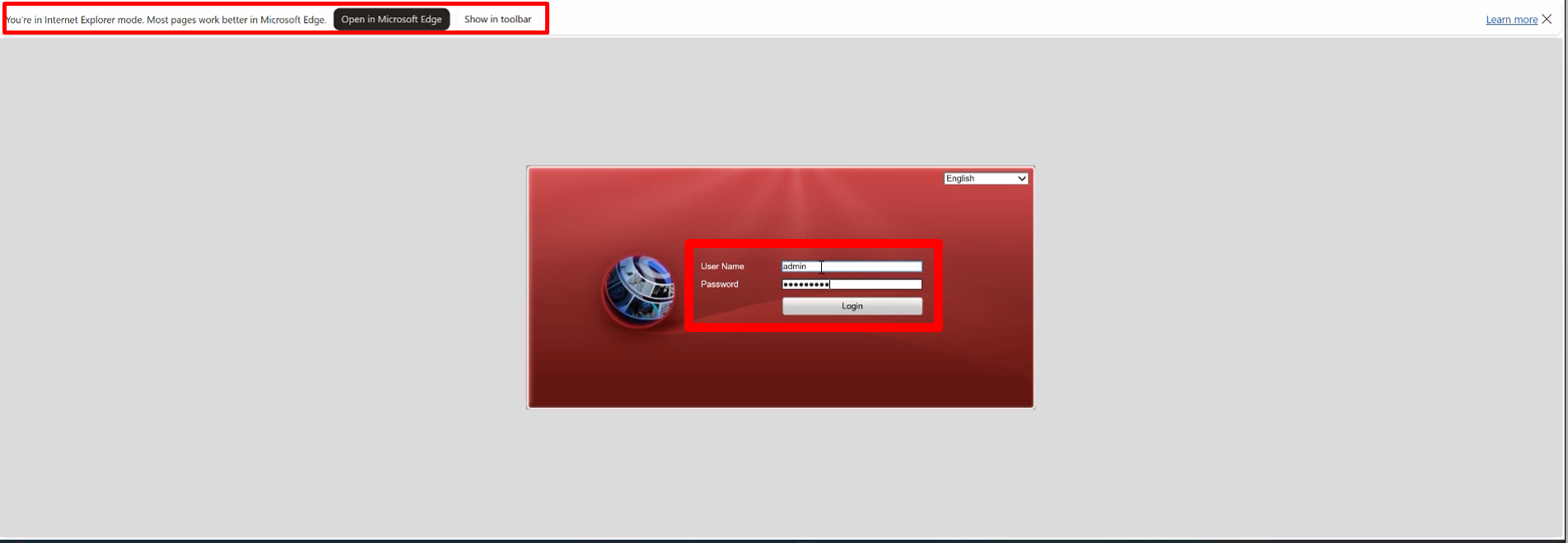
a. Access DVR in Microsoft Edge using the address your Administrator provided in Step 1e. You should be able to see a prompt that says “You’re in Internet Explorer mode”. This confirms that Step 1 worked. You can ignore this by clicking the “X” button.
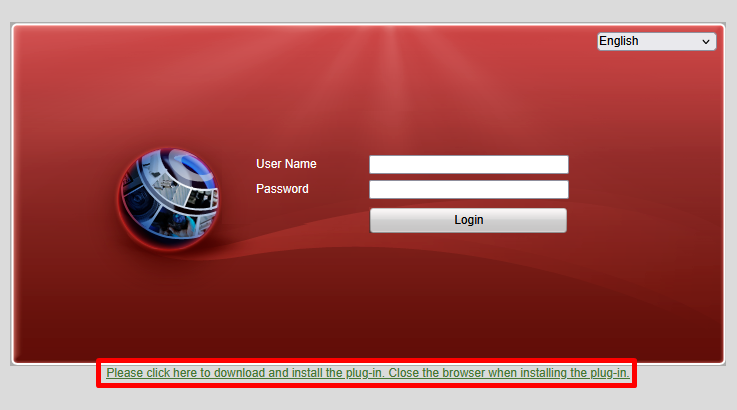
b. Download and the Hikvision plugin by clicking on the link at the bottom of the login prompt.
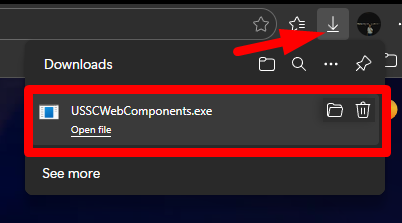
c. Click the Downloads icon at the upper right corner of the Microsoft Edge browser and run the “Web Components” file.
d. The file will open a prompt to install the plugin to your Microsoft Edge / Internet Explorer browser. Hit Next on the setup prompts until the installation finishes.
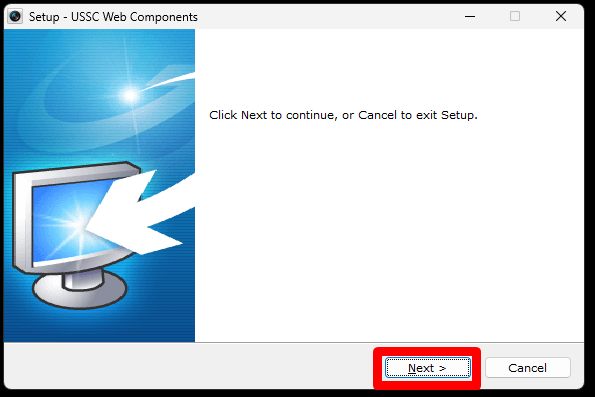
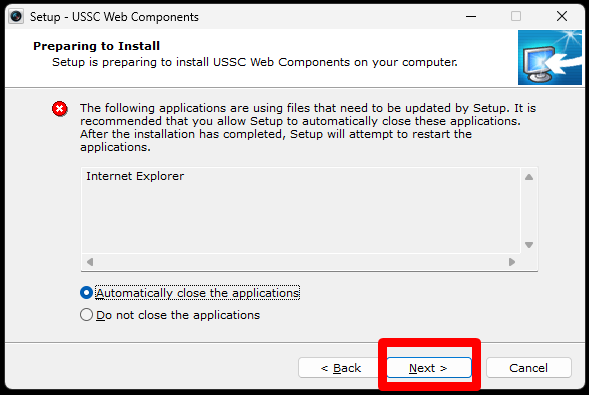
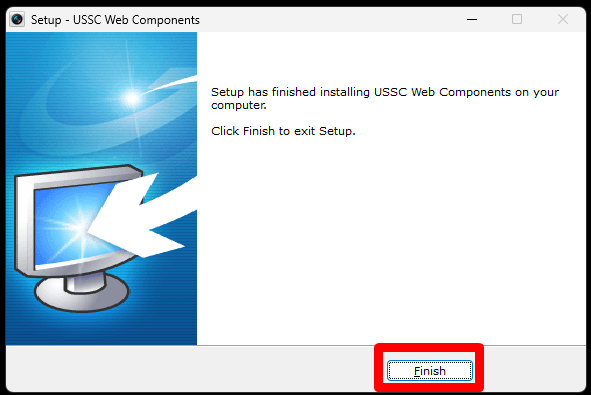
e. Refer to Step 1a and 1b to reopen Microsoft Edge in IE mode. Login in with your credentials to Access the DVR.
3. Live View
You can see a live view of the cameras on the Live View Page. Please refer to the screenshot and legends below to use some of the important Live View functions.
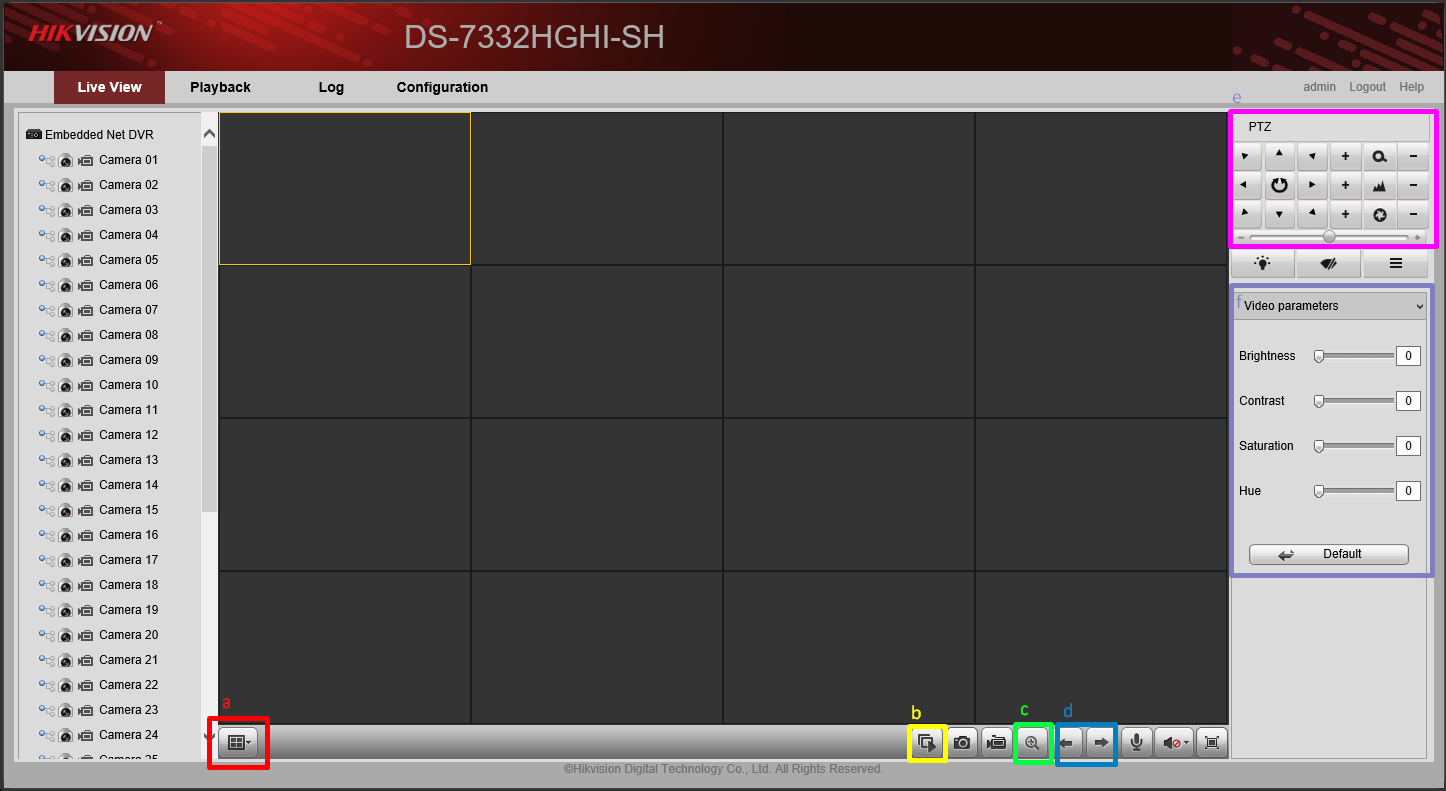
a. Change Grid View
b. Start Live View
c. Zoom
d. Previous/Next Camera
e. Pan/Tilt/Zoom function
f. Video Parameters
4. Playback
You view the cameras’ recordings on the Playback Page. Please refer to the screenshot and legends below to use some of the important Playback functions.
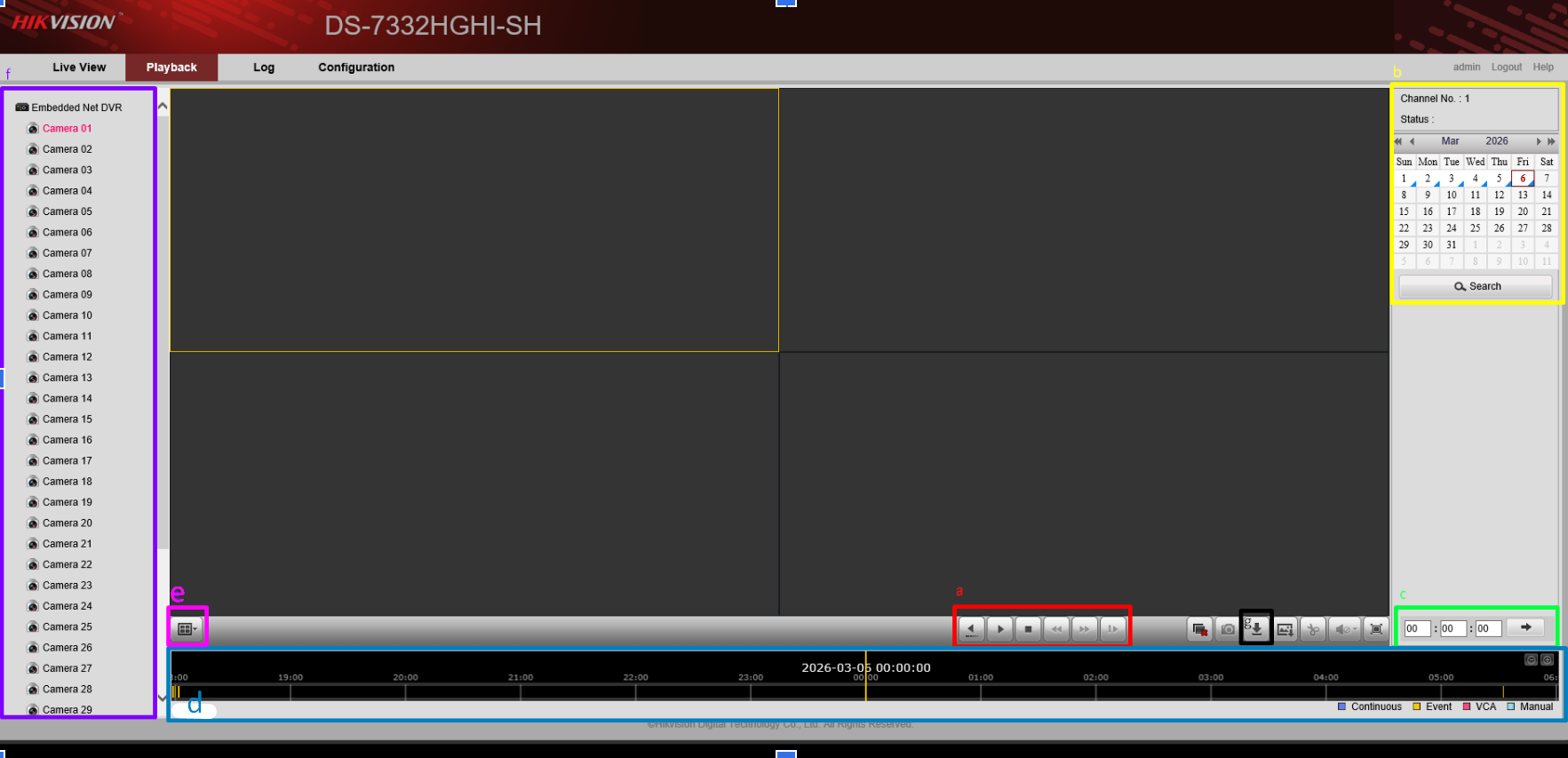
a. Media Playback functions
Use these buttons to play, stop, rewind, and fast-forward the recordings shown on the grid.
b. Select Date
You can select the Dates for the recordings you want to view on this panel. The blue triangle at the bottom of the date indicates that the DVR has recordings for that date. If the date does not have a blue triangle, this means that the DVR has no recordings for that date. Typically, recordings are stored for 90 days depending on your storage configurations.
c. Search Time
This is where you input a time to search for a specific time of the recordings. Use military time ie. 1 PM > 13:00:00 and 1 AM > 01:00:00
d. Timestamp
You can drag this pane forward and backwards to view specific timestamps.
e. Change Grid View
f. Camera Selection
g. Download
Download recordings using this button.
5. Download Recordings
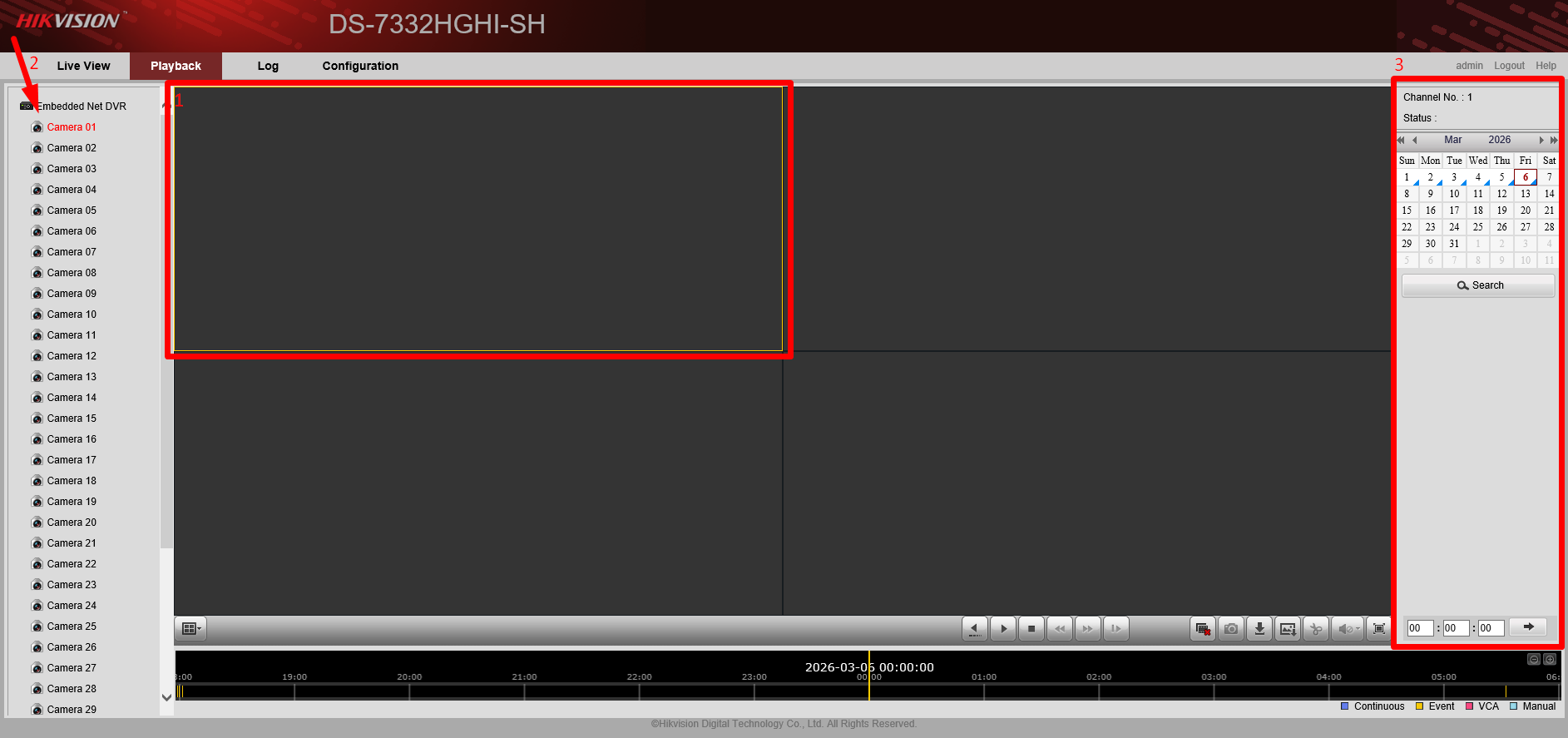
a. Click on a ‘blank’ Grid then on one of the Cameras on the Camera Selection panel (Step 4f). Select the date (and time) you want and hit the Download button (Step 4g).
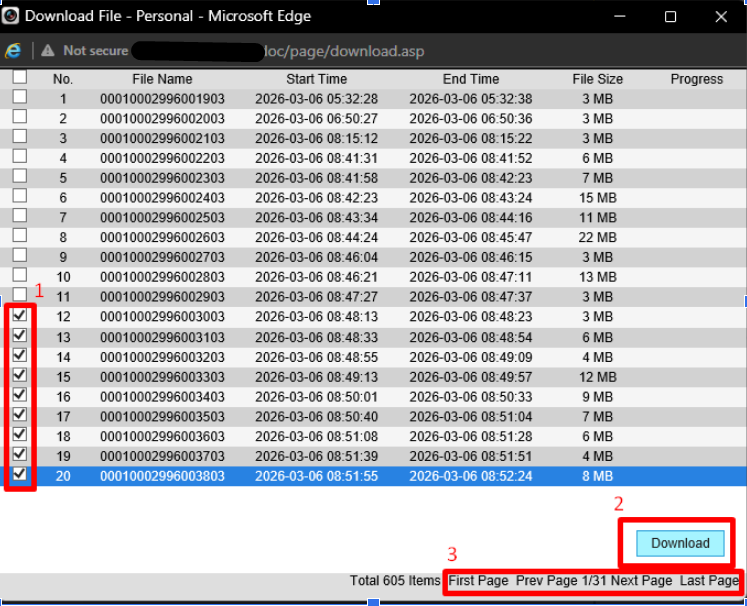
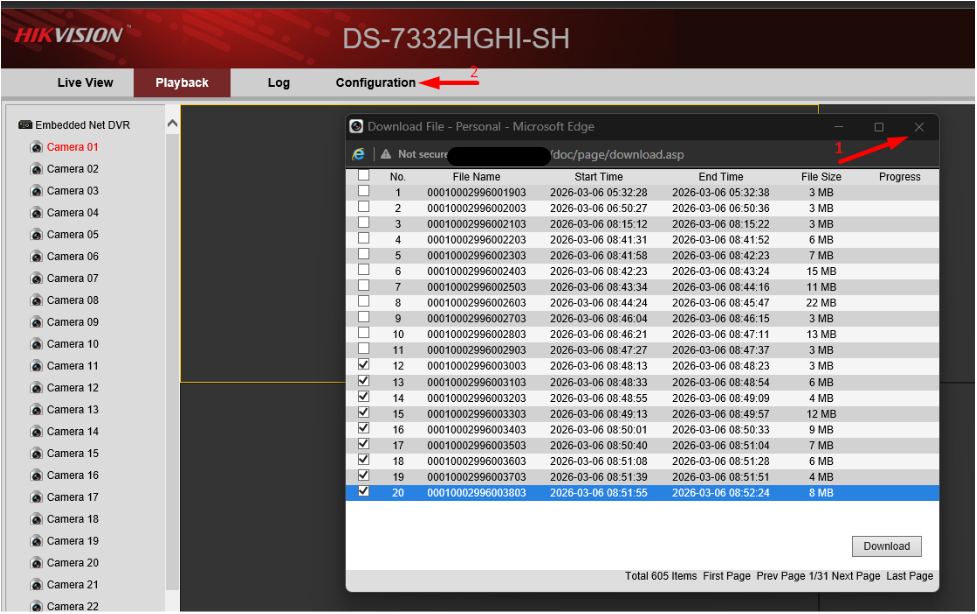
b. Select the files you want to download on the Download pop-up window. Make sure to hit the Download button at the bottom before proceeding to the next page as it only downloads the files selected on the current page.
c. Close the Download pop-up window and head over to the Configuration tab to locate the files.
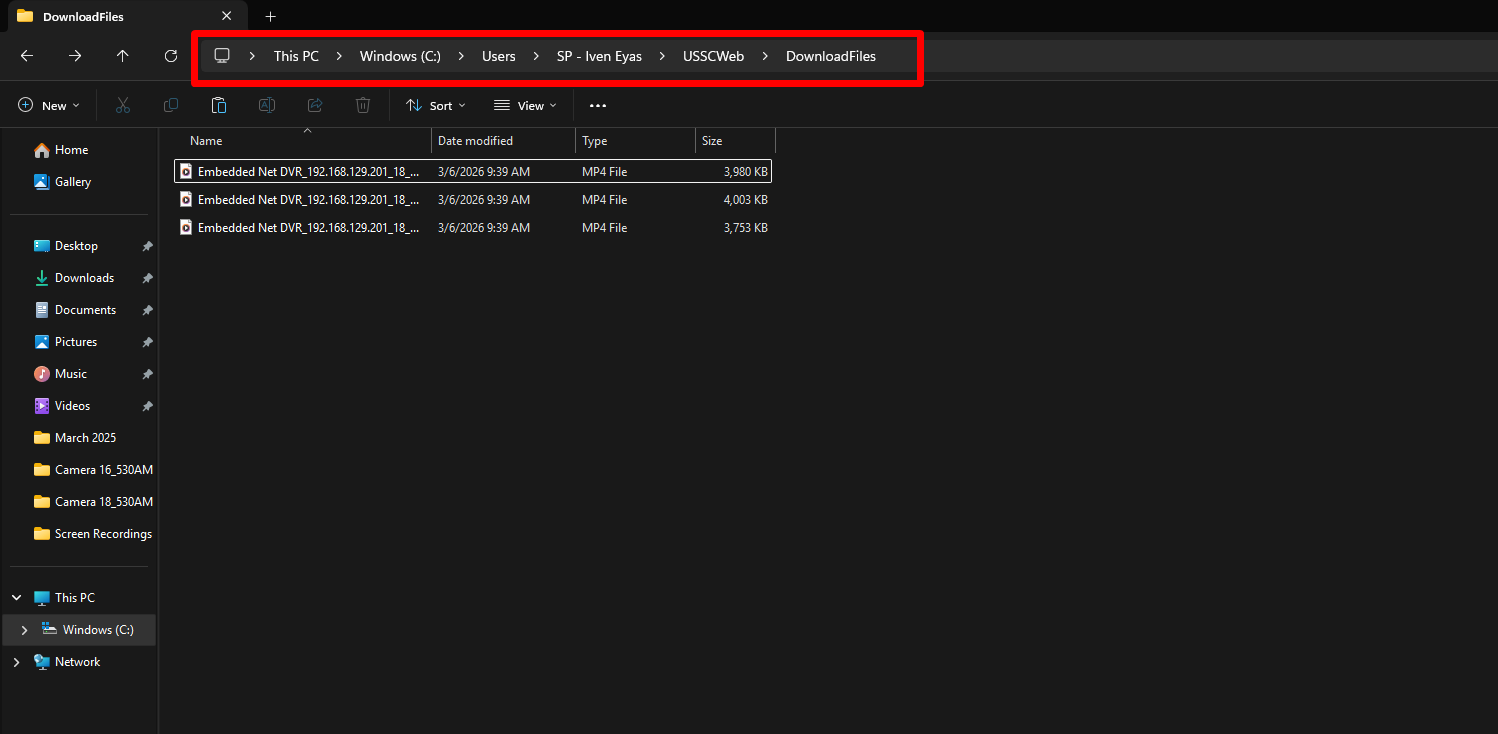
d. On the configuration tab, hit “Local Configuration”. The recordings are located on the file directory listed under “Save downloaded files to”.
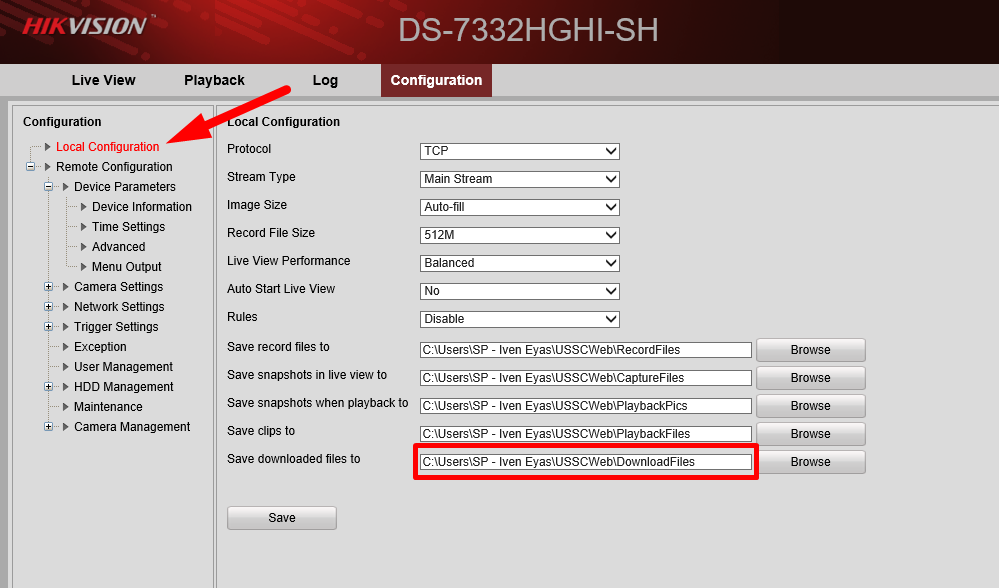
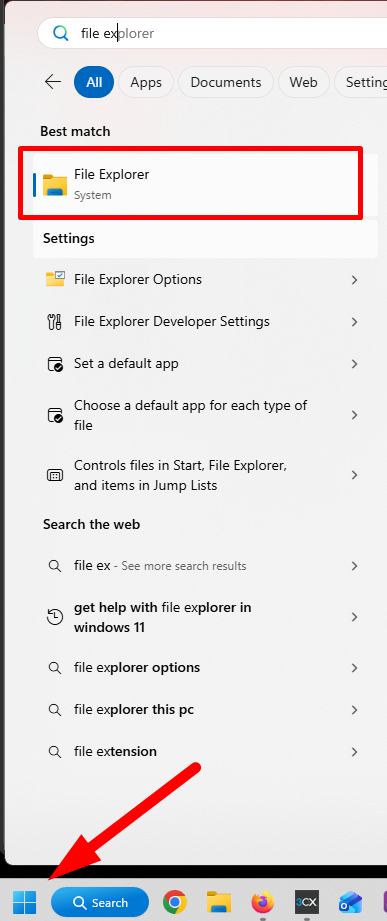
e. Open File Explorer on your computer and navigate to the directory indicated on Step 5d.