
Open customer account in Alarmnet 360.
Search customer account using the MAC or the CS-ID.
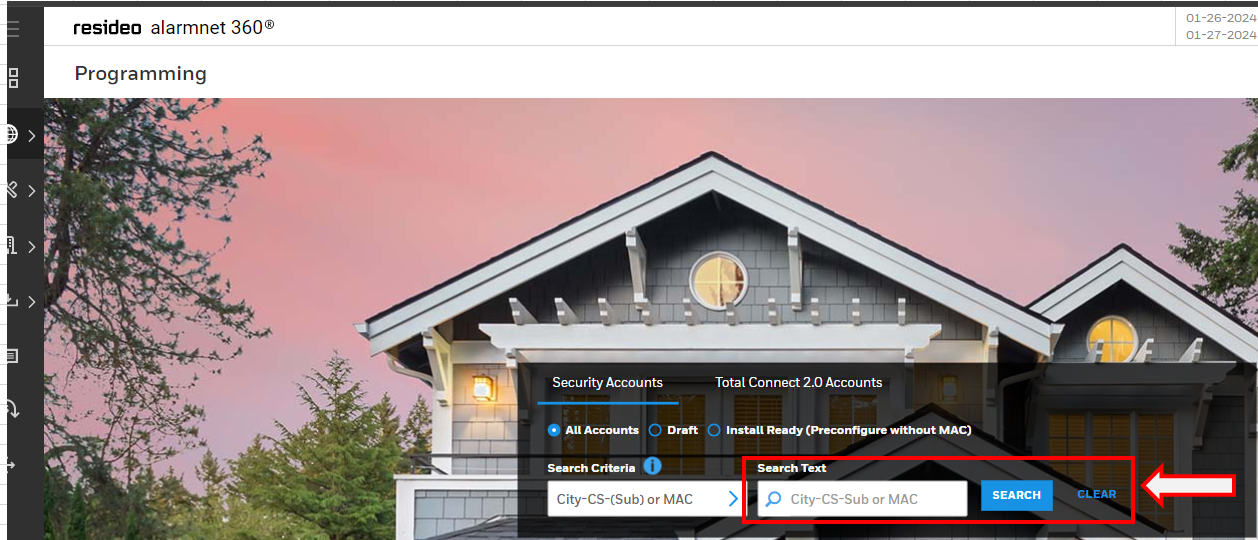 Once located, Under the Account Overview page, scroll down to the bottom and find Packages,
Under Packages Selection drop down Menu, Make sure Smart Security is Selected.
Click the Save button.
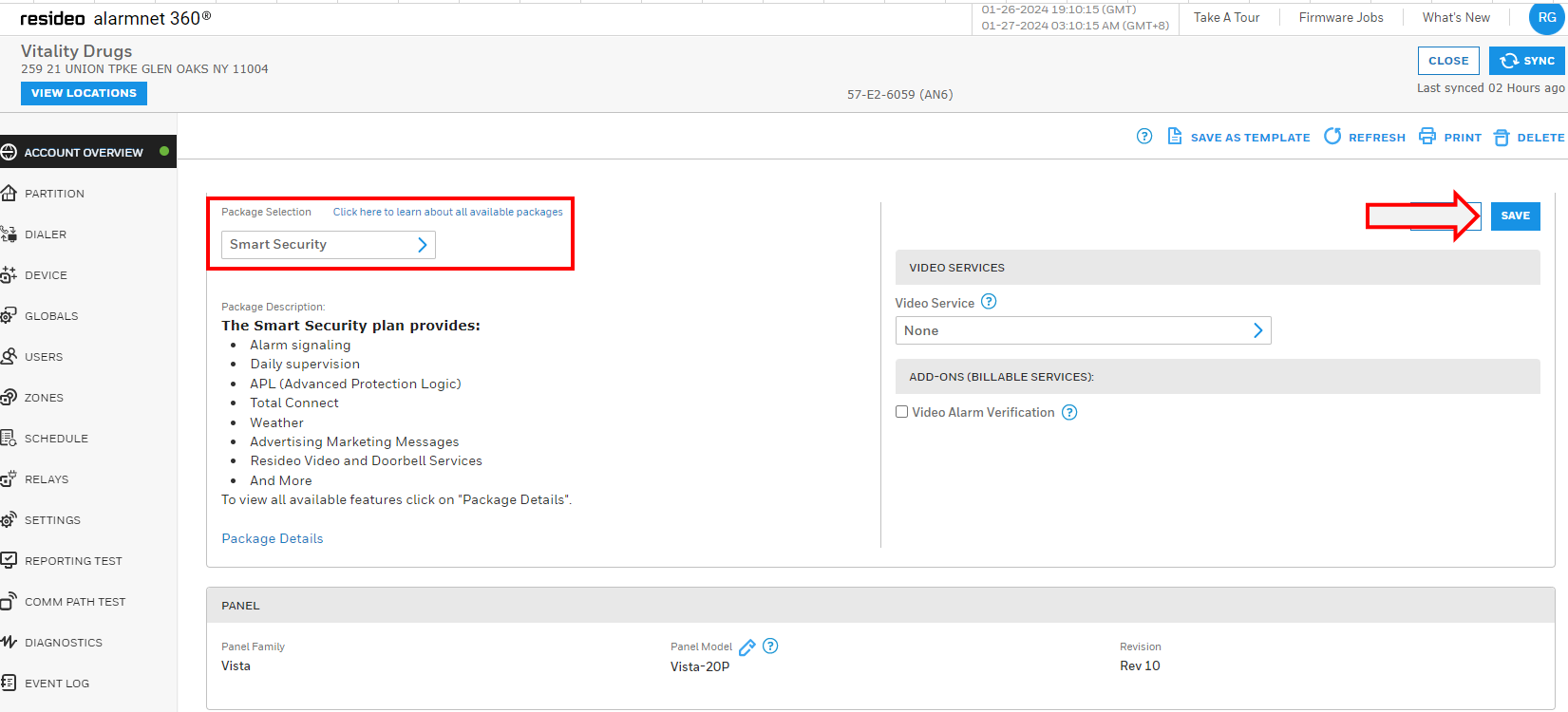
Refresh the page. The Total Connect 2.0 Services menu box is visible right below the Packages Menu box.

Click the +TOTAL CONNECT to set up TC2 details for the customer account.
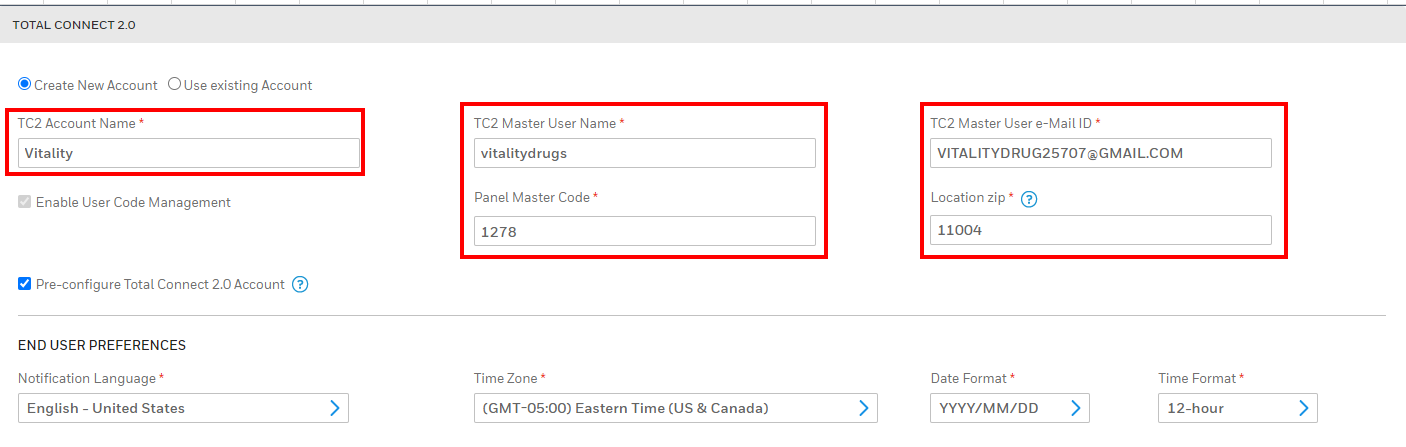
When routed to the Add Total Connect landing page. Update the customer account by providing the following details below.
TC2 Account Name
TC2 Master Username
Panel Master Code
TC2 Master User e-Mail ID
Location ZIP
Select ALL in the Notification check box. This way customer will be notified with the necessary notification to their registered email address.
Click FINISH to complete Set Up
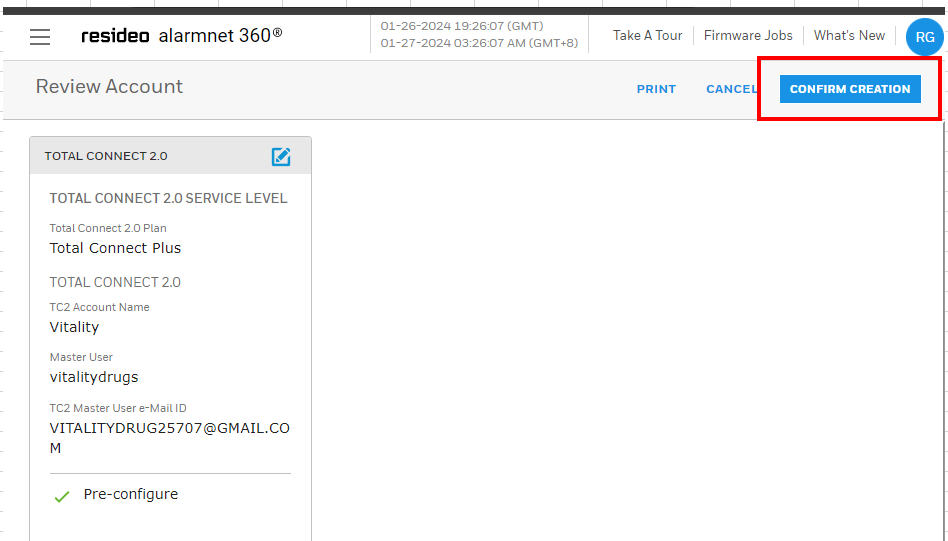
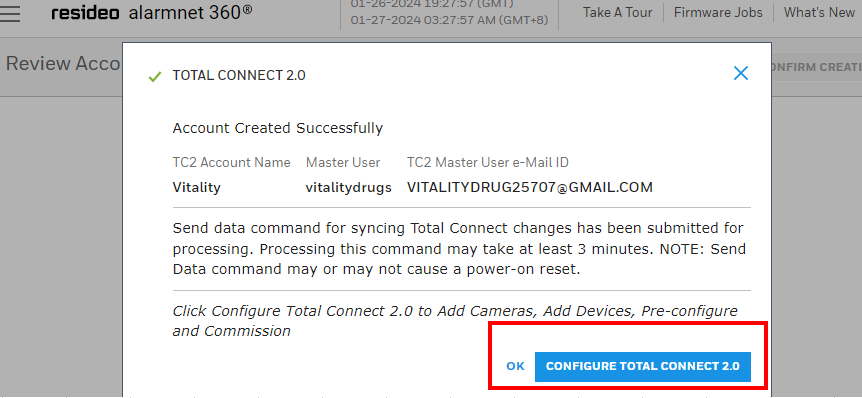
Review the Account Details and select CONFIRM CREATION button and Proceed to Configure the Total Connect customer account.
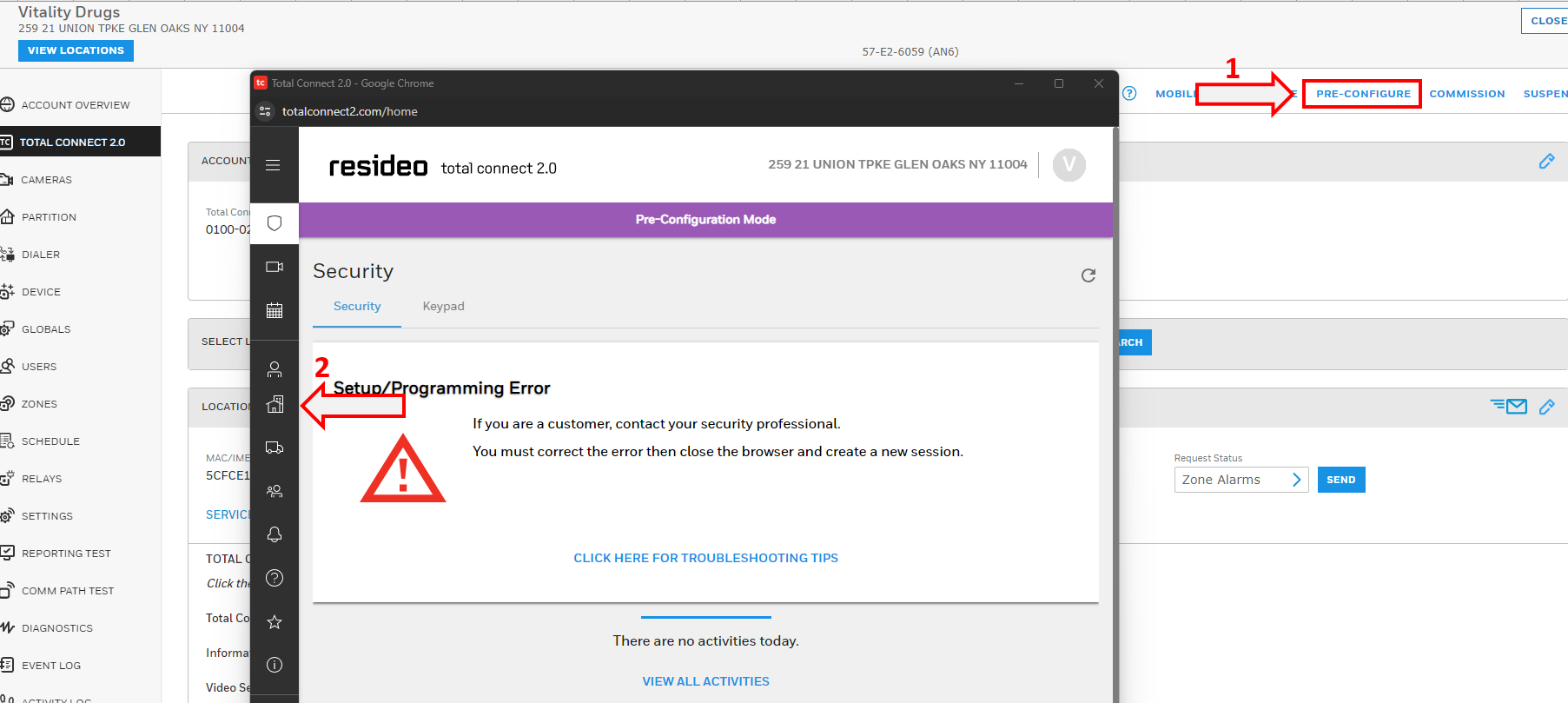
Select the PRE-CONFUGRE to launch the TC2 applet
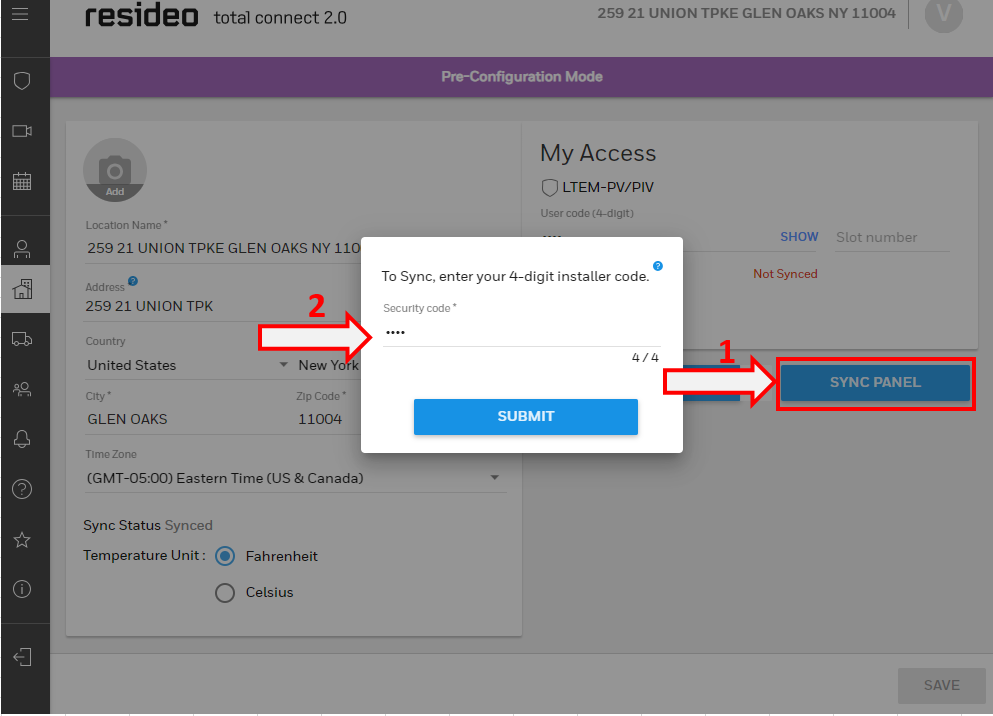
Select Location to Perform a Sync on the Panel and Sync on the User.
Select the SYNC PANEL button and Input the 4 digit MASTER CODE
Click Submit
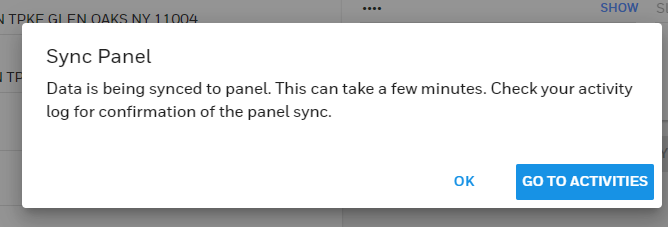
A prompt message will appear when Panel is in Sync.
Allow 3-5 minutes for the Sync to Complete
After that period, Select GO TO ACTIVITIES to confirm Panel Sync is successful
Select the GO TO ACTIVITIES button and confirm if the User Sync and Panel Sync succeeded.
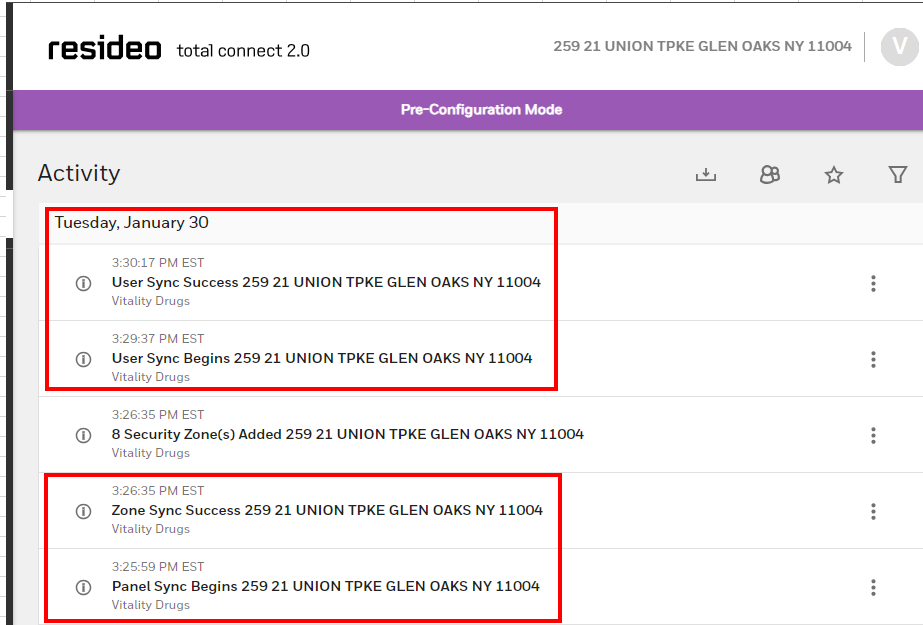
Once confirmed User Sync and Panel sync succeeded.Go back to Alarmnet 360. and locate TOTAL CONNECT 2.0 in the left panel.
Update the correct email address for customer to receive the TC2 Welcome Email.
Select COMMISION.
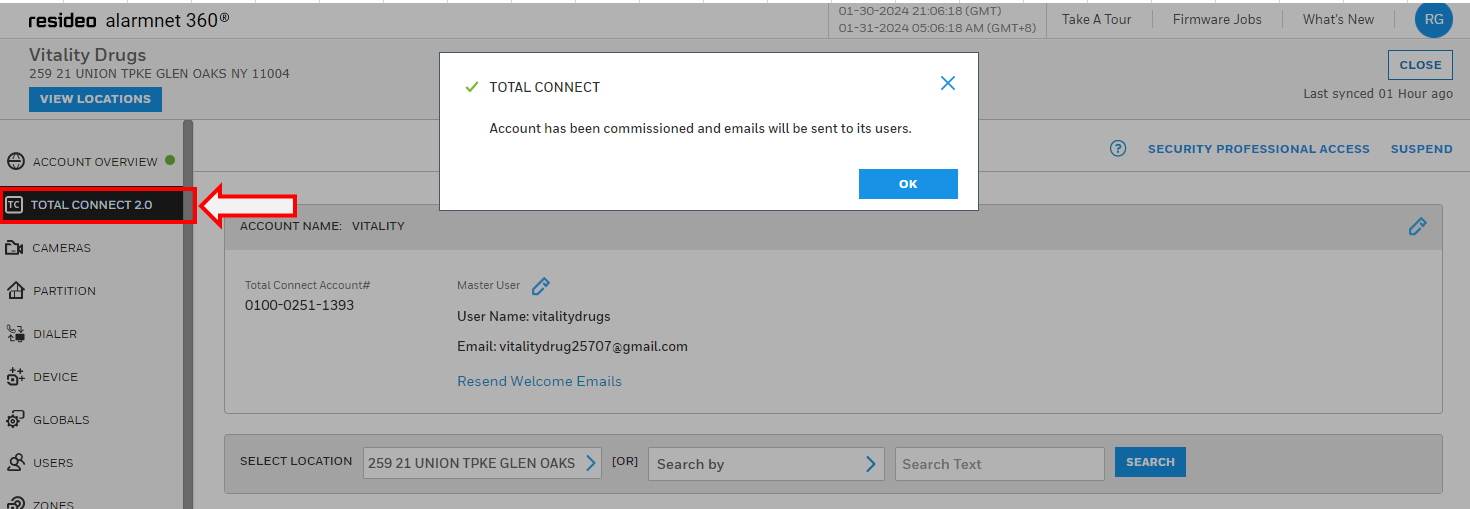
Contact customer and inform that Total Connect 2.0 Welcome Email has been sent and they have to create their user password by clicking the link in the email.
Also, they have to download the Total Connect application on their mobile device for them to be able to log in using the credentials.