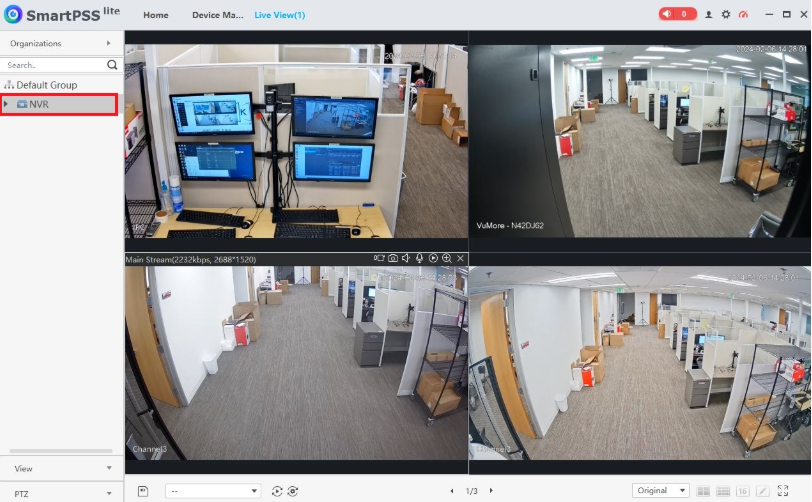
Follow this instruction on how to installl SMART PSS Lite
and also how to add a video recorder.
First download and install SMART PSS Lite:
https://dahuawiki.com/SmartPSS_Lite
Choose for WINDOWS or MAC download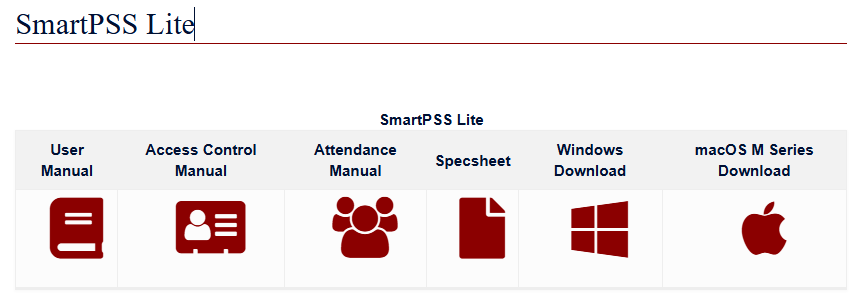
Once installed open Smart PSS
In SmartPSS Lite, click on Home at the top.
Then select Device Manager at the bottom
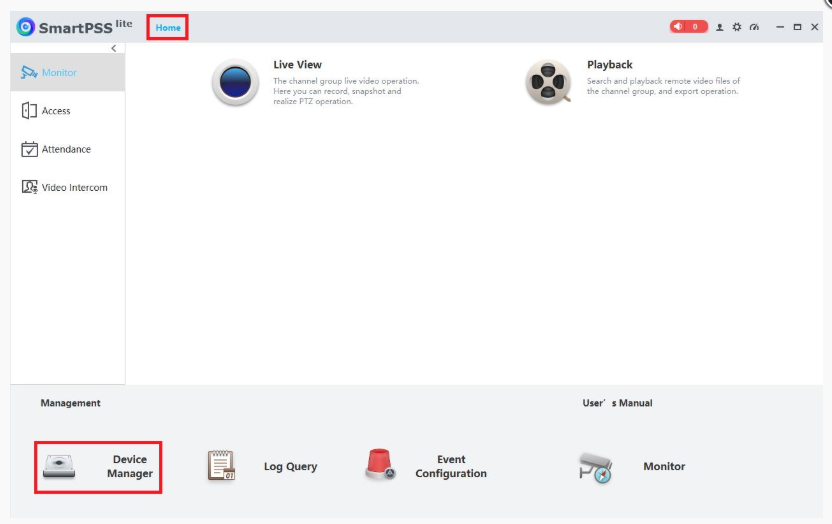
Click on + Add at the top
Click on the drop-down below Method to add and select SN(For Device Support P2P).
Enter a name for the device in the field under Device Name.
Enter the serial number of the device in the field under SN.
Enter the username and password for the device in the User Name and Password fields.
Click on Add at the bottom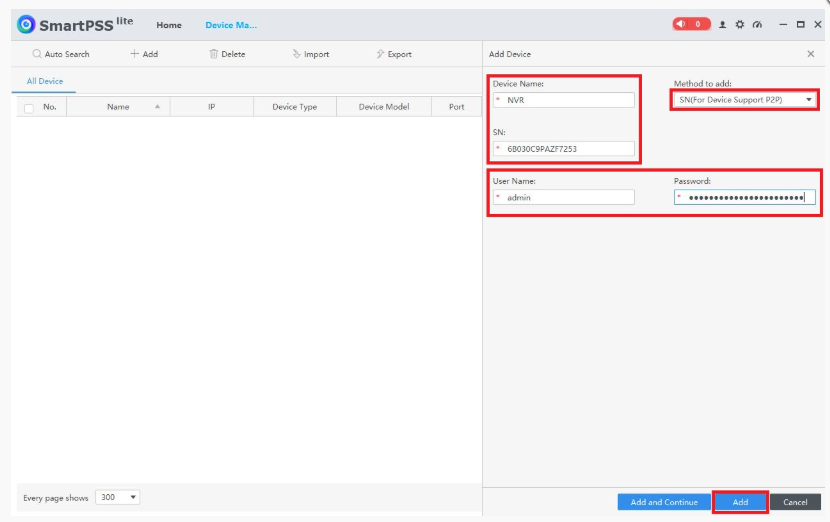
The device will be added to the list.
Verify that the Online Status has a green dot and says "Online"
If it will not automatically login, you can manually login by clicking the LOGIN/LOGOUT Icon on the right side.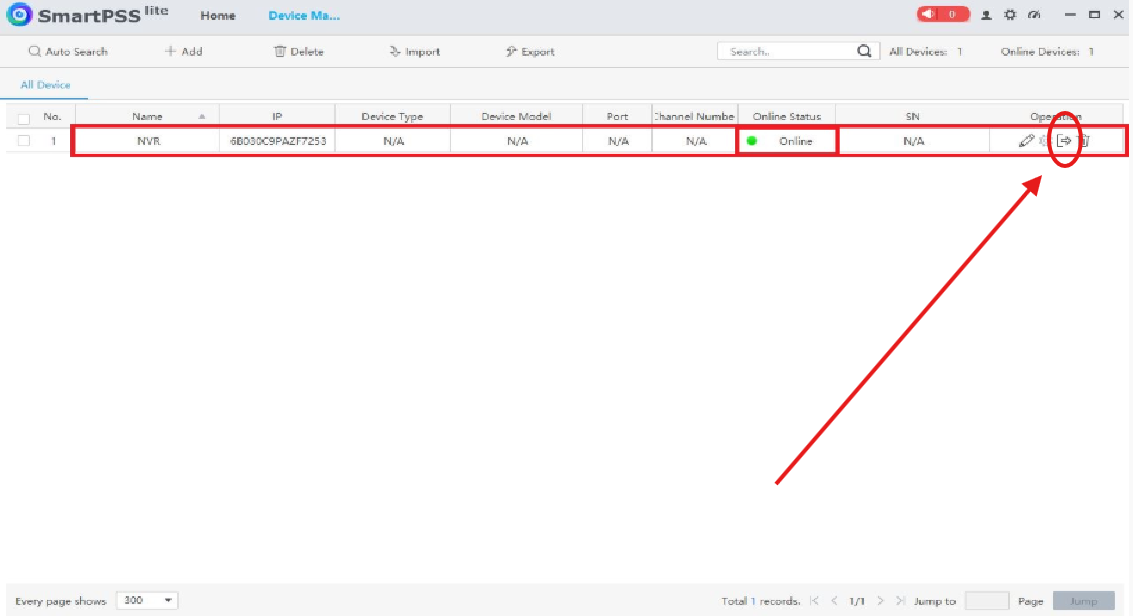
Select the Home tab at the top.
Then click on Monitor on the left.
Select Live View 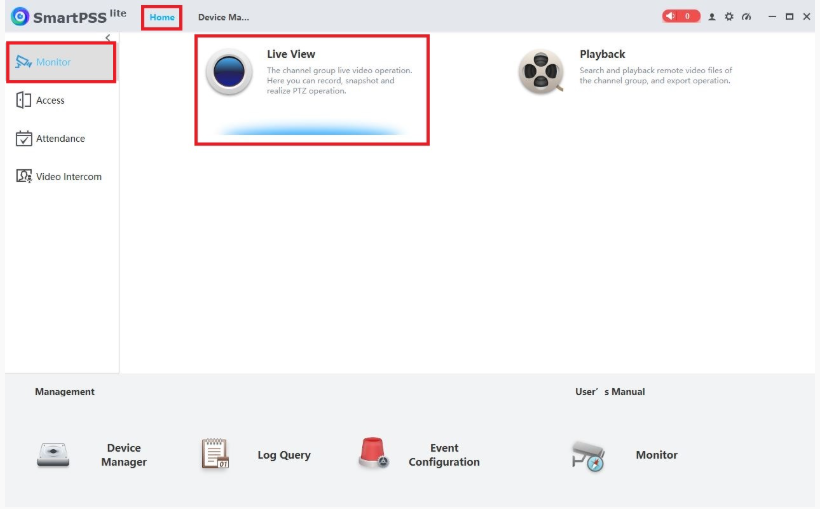
Double-click on the device on the left to pull up the live view of the cameras