Follow these instructions on how to Download a Footage using your SMART PSS Lite Desktop Application
Open Smart PSS Lite
Click On PLAYBACK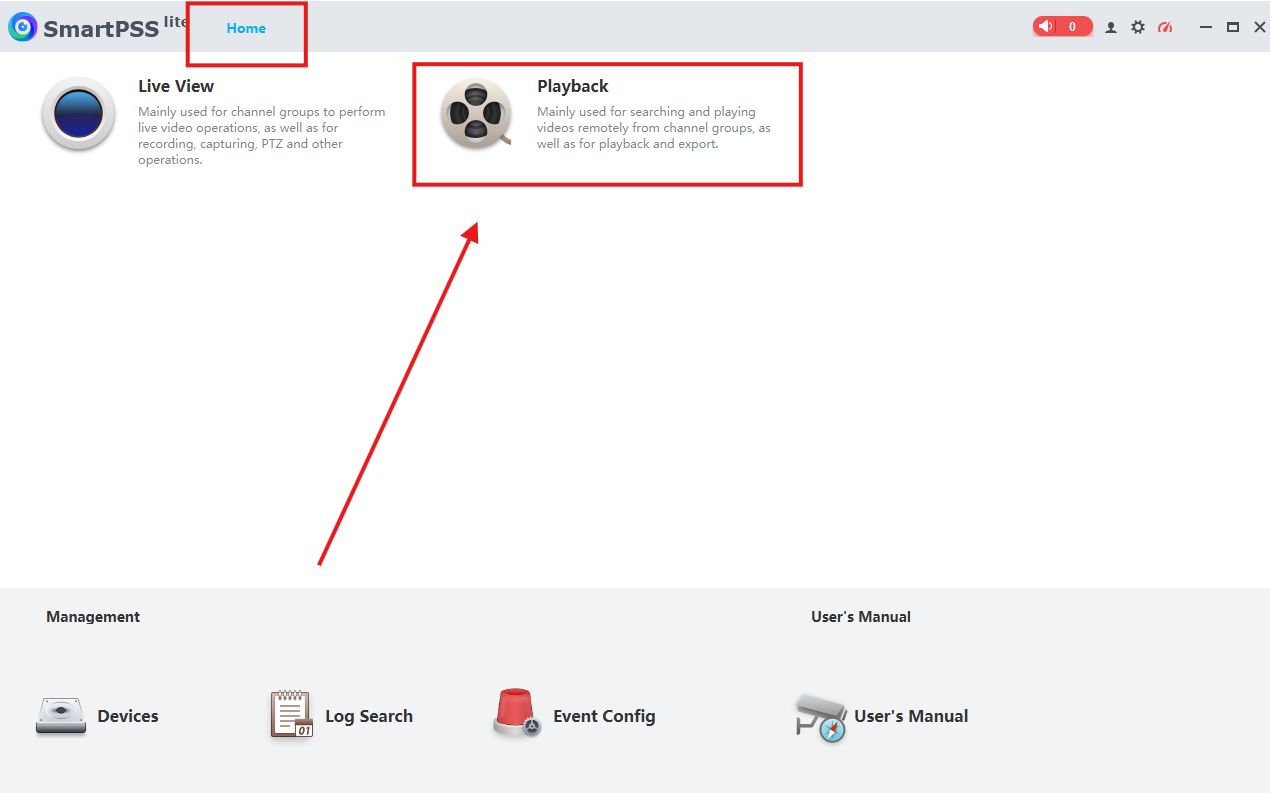
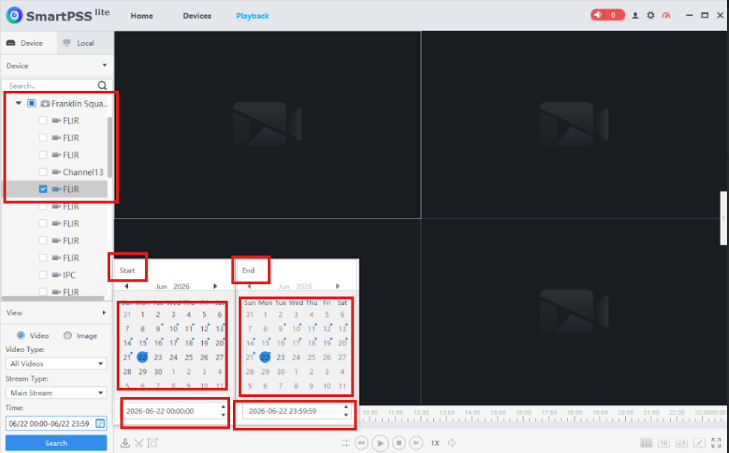
Choose the DVR where the camera that you need is installed. Then put a CHECK on which camera you would like to Download
Choose for the START Date & Time and also the END Date & Time
Then Click on SEARCH
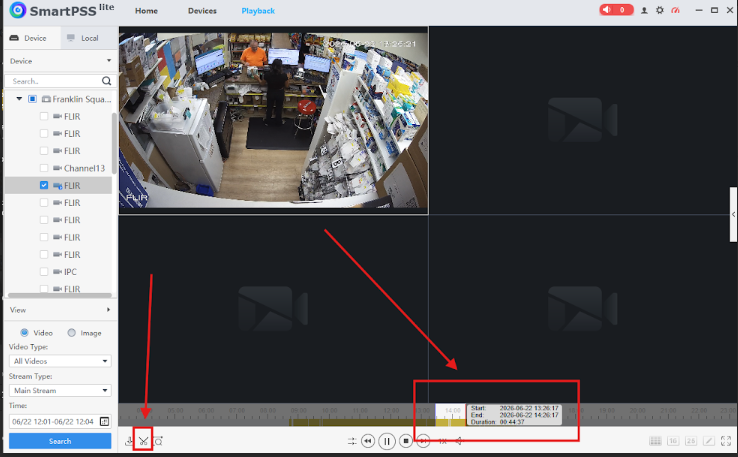
Once done it will show you the timeline of the Date and Time that you entered.
Once you found the time that you needed click on the SCISSOR icon on the lower left
Drag on the TIMELINE BAR on which you would like the video to START and END
Click again the SCISSOR icon to DOWNLOAD the footage
It will now ask you on where the downloaded file will be saved.
You can choose also the format you would like to have but the most common one is MP4
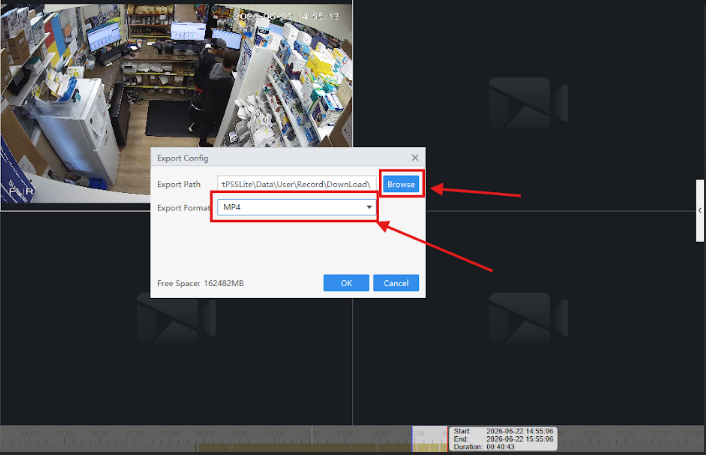
Once you click on OK
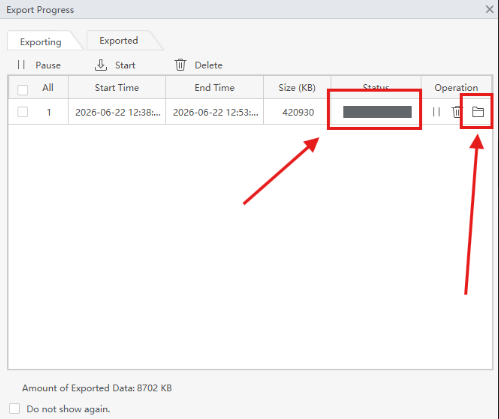
It will show you the DOWNLOADING status/progress.
You can also click on the folder icon once it downloaded so it will direct you on which folder is was saved